DJI OM 5 Smartphone Turn Auto ShotGuides on or off
DJI OM 5 Smartphone Turn Auto ShotGuides on or off
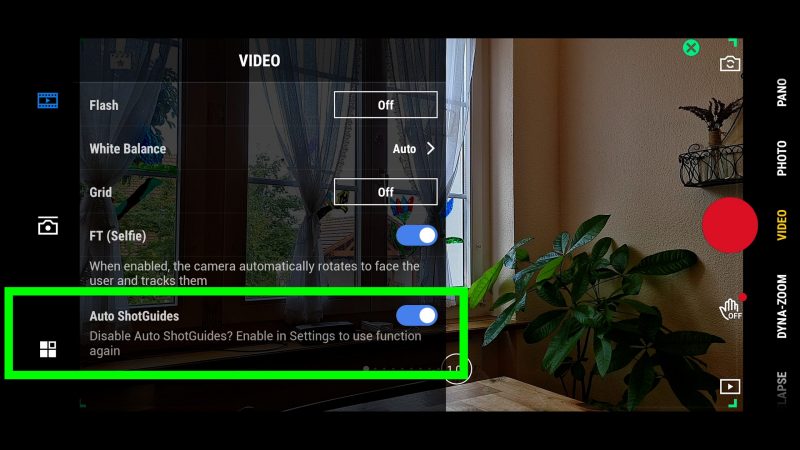
If you don’t want Mimo to do this automatically, you can go into settings and toggle it off. Once it’s off, you need to tap the ShotGuide icon in the top left of the screen to open up suggestions.
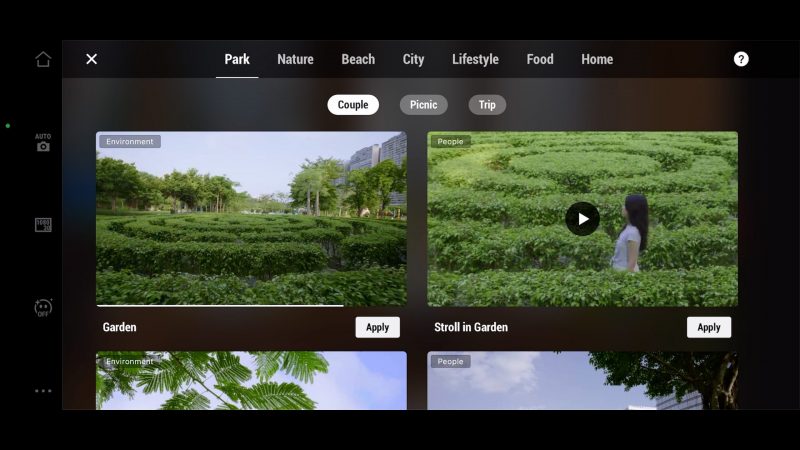
While open, shot suggestions of various types are organised under headings. There’s Park, Nature, Beach, City, Lifestyle, Food and Home. There’s also subheadings under each of these. For example, Park has Couple, Picnic and Trip as subheadings.
Choose a shot by clicking Apply. Now the shot suggestion will sit in the left side of the screen, playing in a loop. In one screen there is the shot suggested and in the other screen a demonstration of how to carry out the shot.
Now when you apply any of the ShotGuides, Mimo switches to the appropriate gimbal mode. In this suggested shot you can see the camera spinning and so Mimo switches you into SpinShot mode, which is pretty cool.
At the same time, you will now find you can’t use the M button to change modes. To get access to the Mode button again, you need to close ShotGuides.
https://momofilmfest.com/


Comments
Post a Comment